Antlion / Components / Sheet Setup
Sheet Setup
Holds the sheet layout settings in one place - the paper size, how many sheets per row, the scale rounding, margins and the text style. Wire the SHD output into C-value Section Check, C-value Map and Seat Map so every sheet component lays out the same way from a single setup. Leave SHD unwired and each of them uses the defaults this component starts with. Where the sheets start is not part of it - each sheet component keeps its own Origin, so their sheets do not land on top of each other.
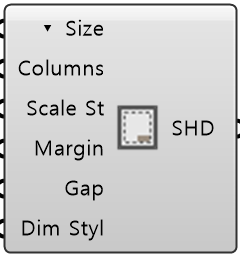
Colored ports carry the chain from one component to the next. The rest are values you set once. Inputs marked ▾ take a Value List: wire one in and it fills with the choices.
Inputs
- Sheet Size Mode
▾ SizeSheet format, landscape (default A3) - Sheet Columns
ColumnsHow many sheets per row before the layout wraps (default 4) - Scale Step
Scale StDenominators round up to a multiple of this. Set it to the scale you want - 800 gives 1:800 if it fits (default 100) - Margin
MarginMargin inside each sheet, in paper millimeters (default 10) - Gap
GapGap between sheets, in paper millimeters (default 10) - Dimension Style
Dim StylA Rhino dimension style for the sheet texts. Leave unwired for the default
Outputs
- Sheet Data
SHDThe sheet setup as one object. Wire into the SHD input of any sheet component
What it does
One Sheet Setup can feed C-value Map, C-value Section Check and Seat Map, but each of them works out its own scale: the most detailed one its drawing fits at on the sheet, rounded up to a multiple of Scale Step. Enter the scale you want as Scale Step - 800 for 1:800 - and a sheet uses exactly that whenever its drawing fits, otherwise the next multiple up. So the three sheets share a scale only when every drawing fits at Scale Step. For a different scale on each, give each component its own Sheet Setup. A scale more detailed than the drawing fits at cannot be forced: choose a larger sheet size instead.
- Component
- Ribbon
- Util
- Tier
- free
- Ports
- 6 in · 1 out
- Version
- 1.0.11
- Checked
- 2026-10-08